Master Overwatch 2 voice chat for seamless team communication, boosting coordination and victory with easy setup and channel management.
In the high-stakes, fast-paced world of Overwatch 2, clear and coordinated communication isn't just an advantage—it's often the decisive factor between victory and defeat. This team-based multiplayer shooter thrives on synchronized strategies, timely callouts, and coordinated ultimate abilities. Recognizing this fundamental need, Blizzard designed Overwatch 2 with Voice Chat enabled by default, emphasizing its critical role in the gameplay experience. Seamless vocal teamwork allows players to relay enemy positions, coordinate complex pushes, and adapt strategies on the fly, transforming a group of individuals into a cohesive unit. For newcomers or those encountering issues, understanding how to effectively join and manage voice channels is paramount for climbing the competitive ranks and truly enjoying the game's depth.
🔧 Configuring Voice Chat Settings
Accessing and configuring the voice communication tools is straightforward within the game's menus. Players initiate the process by:
-
Launching Overwatch 2 and navigating to the Main Multiplayer Menu.
-
Selecting the "Settings" option.
-
Clicking on the "Sound" tab.
-
Locating and selecting the "Voice Chat" sub-menu.
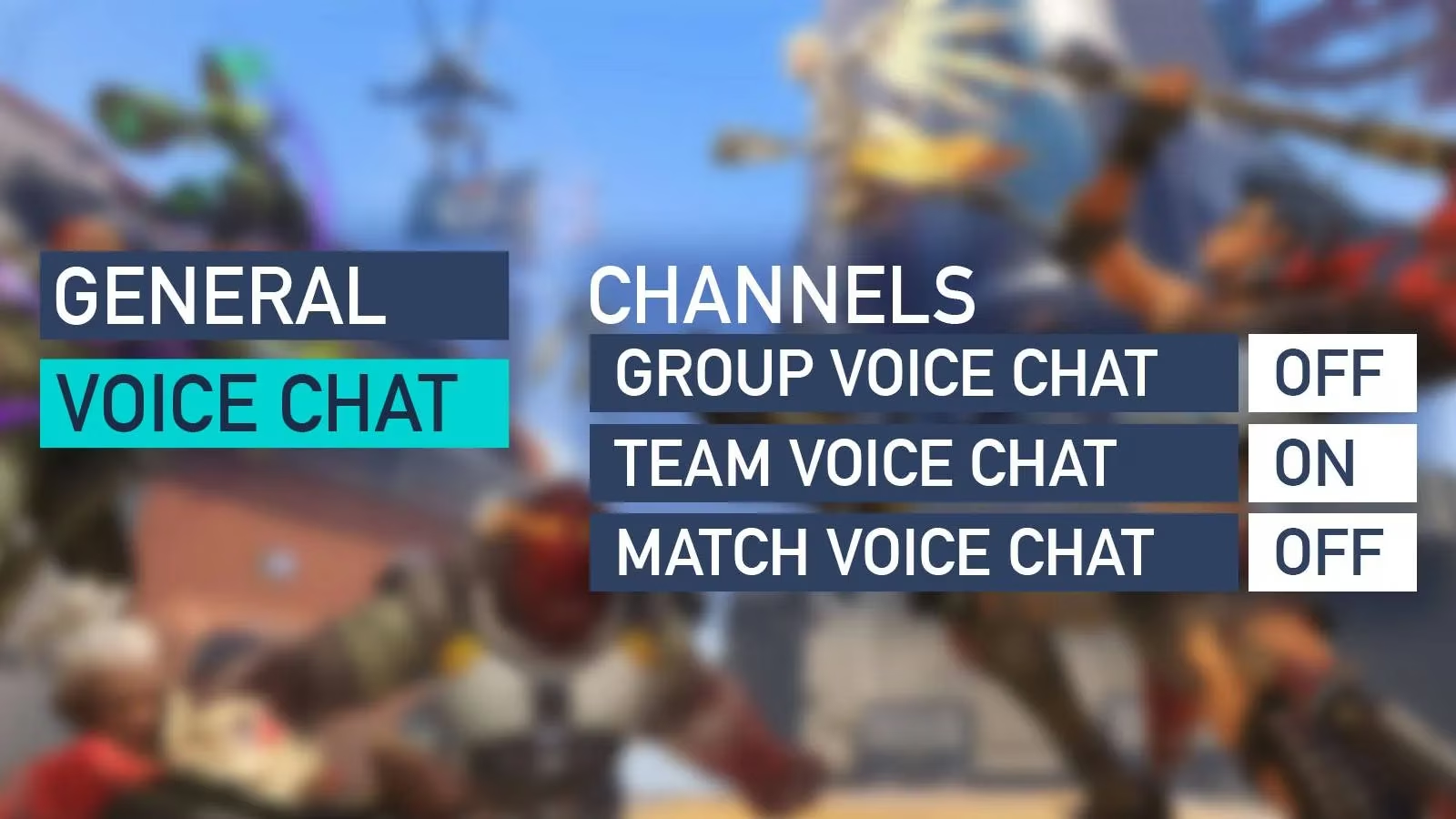
Within this menu, players encounter the core voice channels:
-
Match Voice Chat: Enables communication with every player in a custom game lobby.
-
Team Voice Chat: Connects players with their entire team during competitive, quick play, or arcade matches – essential for coordinated plays.
-
Group Voice Chat: Facilitates discussion only with players in your pre-formed group, perfect for strategizing before a match begins.
For each channel, the "Auto Join" option is crucial. Enabling this ensures players enter the designated voice channel automatically upon joining a match or group, eliminating the need for manual entry every time. This is the recommended setting for most players seeking consistent communication.

🔊 Joining and Switching Channels
While auto-join simplifies the process, players also have manual control:
-
Manual Join: During a match or in the lobby, players can click the headset icon 🔈 next to their desired channel (Team or Group) within the Social Menu or Channels list to connect manually.
-
Switching from Group to Team: A common requirement once a match starts. Players must hover over the Hero Select Menu and actively click the "Join Team Chat" button. This deliberate action ensures pre-match group discussions can transition smoothly to full team coordination.
-
Push-to-Talk (PC Exclusive): PC players can enable this feature in the Voice Chat settings. It requires setting a specific keybind. When activated, voice transmission only occurs while the designated key is held down, offering privacy and reducing background noise.
🔇 Managing Mute Functions
Maintaining a positive and focused audio environment is key. Players can easily manage others:
-
Open the Social Menu (usually bound to 'O' or 'P' by default).
-
Navigate to the "Channels" tab or the player list.
-
Locate the player's name.
-
Click the headset icon 🔇 next to their name. This instantly mutes (or unmutes) that player's voice communication.
| Common Voice Chat Feature | Purpose | Location/Action |
|---|---|---|
| Auto Join | Automatically enter designated voice channel | Enabled per channel in Settings > Sound > Voice Chat |
| Join Team Chat Button | Switch from Group Chat to full Team Chat | Hero Select Menu during match setup |
| Push-to-Talk (PC) | Transmit voice only when key is pressed | Requires keybind setup in Settings > Sound > Voice Chat |
| Mute Player | Silence an individual player's voice | Click headset icon next to name in Social Menu (Channels) |
🛠️ Troubleshooting Audio Issues
Occasionally, players might encounter difficulties joining or being heard in voice chat. Common solutions include:
-
Hardware Check: Verify the microphone 🎤 and headset are properly connected and functioning. Test them outside the game (e.g., via system sound settings).
-
Default Input Device: Ensure the correct microphone is set as the default input device in your PC's system sound settings or console audio configuration.
-
In-Game Mute Status: Double-check that you haven't accidentally muted yourself in the Overwatch 2 settings or via a keybind.
-
Channel Verification: Confirm you are actually connected to the desired channel (Team or Group) via the icons in the Social Menu or top-left corner of the screen.
-
Game and System Updates: Ensure Overwatch 2 and your platform's operating system are fully updated, as patches often resolve audio bugs.
Mastering Overwatch 2's voice chat system unlocks the game's true strategic potential. Effective callouts for flanking enemies, coordinating ultimate combos like Zarya's Graviton Surge paired with Hanzo's Dragonstrike, or simply organizing a team push become possible. By configuring settings correctly, utilizing the appropriate channels, and managing audio hardware, players ensure their team operates like a well-oiled machine, ready to tackle any challenge the vibrant arenas of 2025's Overwatch 2 present. The game remains readily available on Nintendo Switch, PC, PlayStation 5, and Xbox Series X/S.